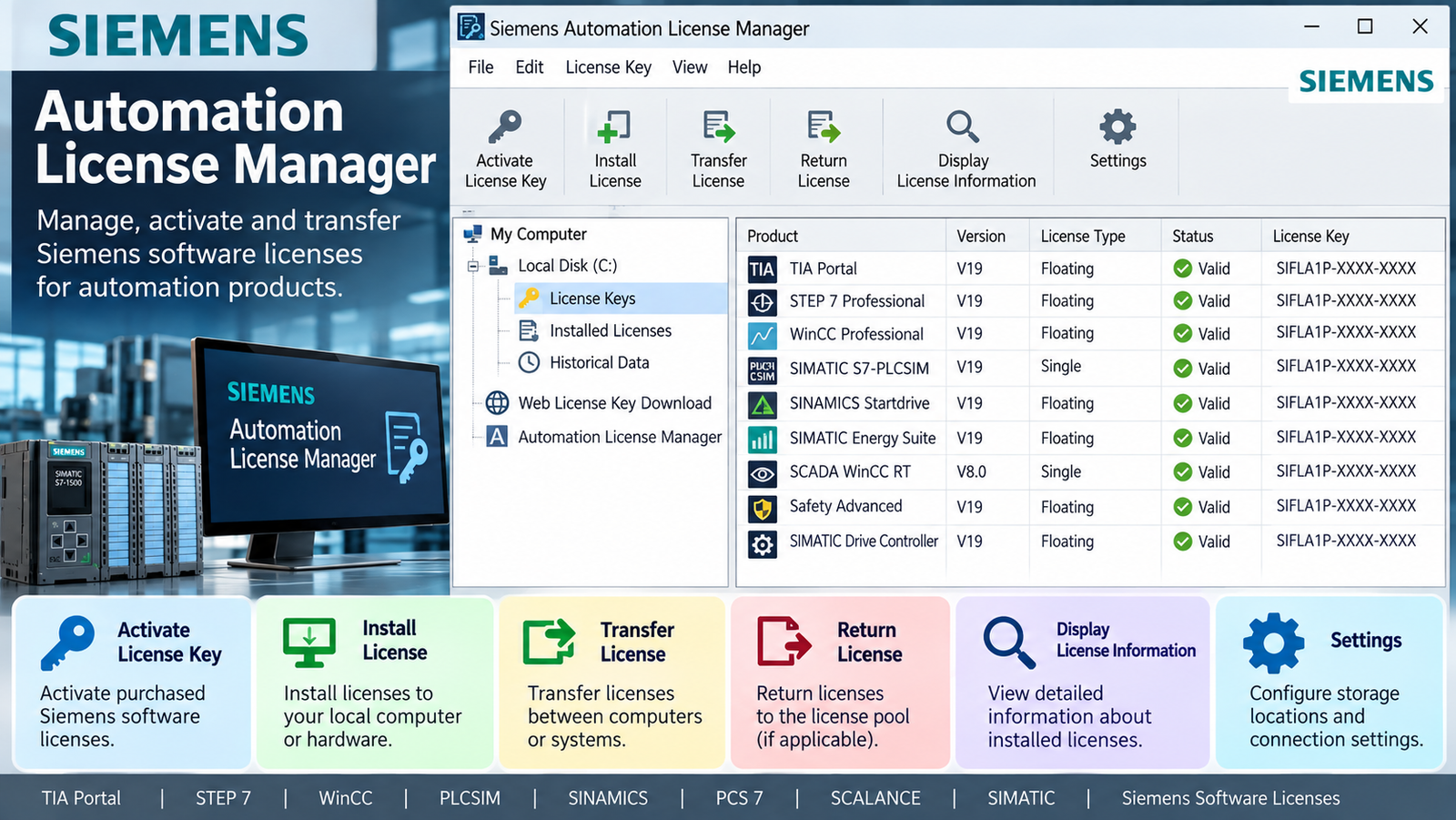
A missing software license can delay commissioning even when your project and hardware are ready. Siemens Automation License Manager helps you manage the License Keys needed to run supported Siemens software, but it doesn’t create licenses or duplicate keys.
The practical priority is license availability: the correct key must be accessible where the software needs it. That requires checking the product, edition, release, and storage location before installation or transfer.
Understanding how ALM handles keys, where device-specific instructions apply, and what to check when licensing fails helps you avoid unnecessary troubleshooting.
Table of Contents
What Siemens Automation License Manager does, and which products use it
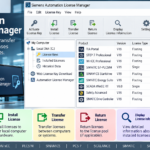
Automation License Manager (ALM) is Siemens software for managing License Keys used by supported products. It helps you inspect available keys and transfer them between supported storage locations.
Three terms matter here. ALM is the management tool. A License Key is the technical item used for license validation. The license entitlement defines your rights to use the software under Siemens’ terms.
Possessing a key doesn’t expand those rights.
How ALM checks a software license
Software that requires a License Key can register its license requirement with ALM. The manager checks whether a valid key is available for that requirement.
TIA Portal provides a practical example. The required license depends on the installed engineering product and its edition. Finding an unrelated Siemens key doesn’t satisfy the requirement.
In practice, start with the software requesting the license. Identify its product name and release, then compare that requirement with the available key. ALM manages the technical validation process; it doesn’t grant additional software rights.
TIA Portal, STEP 7, and WinCC licensing examples
Siemens’ V20 documentation identifies STEP 7 Basic and STEP 7 Professional as products requiring valid License Keys. STEP 7 options also have licensing requirements that must be checked individually.
WinCC licensing depends on the product and deployment. For example, Siemens’ WinCC Unified V19 licensing guidance describes transferring License Keys to the HMI device.
Engineering software and device runtime shouldn’t be treated as interchangeable licensing requirements. Check the exact edition and version before assigning a key.
For broader platform context, compare the roles of industrial automation software platforms. License planning should follow the functions your installation needs.
How to install ALM and get a license key ready
Prepare the software installation and license handling together. The goal is to establish a supported software combination, identify the required key, and confirm that ALM can access it.
Installation instructions must match your release.
Install ALM with the matching Siemens software
Start with the installation media and documentation for your TIA Portal or STEP 7 release. Check how that package supplies ALM and which installation procedure Siemens specifies.
Don’t use an older compatibility table as approval for a newer operating system. Verify the supported combination of Siemens software, ALM, and operating system before changing the engineering workstation.
Siemens’ Automation License Manager manual documents license-management functions, including transfers. Use the applicable product installation instructions alongside it.
If you’re removing TIA Portal, review what the uninstaller will remove. Don’t assume that uninstalling engineering software also handles your licenses safely.
Check the key before using or moving it
Confirm that the available key matches the required product, edition, and release. Then verify its current storage location and whether ALM can access that location.
Siemens’ V20 guidance allows the corresponding STEP 7 and STEP 7 option keys to be transferred after software installation. Installing the application and making its key available are separate tasks.
Before rebuilding a workstation or changing storage, identify every key you still need. Use a supported transfer procedure where relocation is necessary, then verify the destination.
Keep purchase and entitlement records separately. These records support license administration, but they don’t replace the technical License Key.
How to transfer Siemens license keys to an HMI or controller
Device transfers require instructions for the actual destination. An HMI panel and a SIMATIC Open Controller shouldn’t be treated as identical targets.
Confirm the device model, software release, and intended key before starting.
Move a key to an HMI panel and return it when needed
For the documented WinCC Unified V19 example, the License Key must be transferred to the HMI device. That requirement doesn’t establish one universal procedure for every Siemens panel.
Use the panel documentation to identify the supported connection, required settings, and transfer method. Confirm the key’s source location before selecting the destination.
A transfer moves the key. Don’t expect it to remain available at its former location after completion.
When the HMI no longer needs the license, consult its instructions for transferring the key back to supported storage. Verify that the destination contains the key before changing the device or its storage.
Transfer a key to a SIMATIC Open Controller
The CPU 1515SP PC2 has device-specific commissioning instructions for transferring License Keys. Follow those instructions for your controller configuration rather than adapting a general HMI workflow.
Siemens’ Open Controller license-transfer instructions state that SIMATIC License Keys cannot be copied or duplicated. Once keys are moved off the USB source, copies don’t remain there.
Before proceeding, use the controller manual to confirm the supported connection method, storage destination, and transfer permissions. Those details belong to the controller’s procedure.
Afterward, check the destination and source in ALM. A completed transfer should be verified before commissioning continues.
Why copying a License Key isn’t a valid backup
An ordinary file copy isn’t a valid License Key backup. Siemens’ license-key handling guidance states that a License Key cannot be copied.
This matters during workstation replacement, disk changes, and maintenance. A familiar backup workflow may protect project files without protecting the ability to use licensed software.
For safekeeping, use ALM to transfer the key to another supported storage location. Check the current Siemens instructions before choosing that location or changing the original system.
Moving a License Key to safekeeping also moves it away from its previous location. Plan for the software that still needs it.
Keep the transfer process separate from your project-backup process. Both need attention, but they protect different assets.
Record which product the key belongs to, where it’s stored, and who controls access. Verify that ALM recognizes it after the transfer.
A purchase receipt or license document helps establish entitlement and supports administration. Neither creates another usable key. Keep those records, but don’t treat them as a substitute for checking the key itself.
Solve missing-key messages and failed device connections
Start troubleshooting with product identity and key location. Changing software versions or reinstalling components before checking those basics can add unnecessary work.
Check the requirement behind a missing-key message
Identify which product is reporting the licensing problem. Then compare its edition and release with the key available in ALM.
Check whether the key has moved to another workstation, storage device, or HMI. A key that was transferred successfully may no longer be available where you’re looking.
Next, verify whether ALM can access the location containing it. An inaccessible source and an incorrect key require different responses.
For virtual machines, Siemens publishes USB license-transfer troubleshooting guidance. Use that guidance when the VM doesn’t recognize the license USB device rather than inventing a workaround.
Check the device procedure behind a connection failure
For an HMI, compare the selected device and connection settings with the panel’s instructions. Confirm that you’re targeting the intended device before attempting another transfer.
For a CPU 1515SP PC2, check the connection and transfer prerequisites in its commissioning manual. Verify the source containing the key and the destination specified for that controller.
If the operation remains blocked, record the exact message, ALM version, product release, and device model. Those details help Siemens support identify the applicable procedure.
Avoid guessed error-code fixes, undocumented repair commands, or manual changes to key storage. Diagnose the stated problem first.
Check compatibility and network licensing before making changes
Siemens Automation License Manager operates within a release-specific software environment. Updating one component doesn’t automatically establish compatibility across the rest of your installation.
Verify version support for the exact product
Backward compatibility must be checked against the particular key. Siemens’ V20 STEP 7 licensing documentation describes STEP 7 Professional V20.x or Professional Combo keys as permitting older STEP 7 versions, including V19.x and earlier.
That statement applies to the documented STEP 7 keys. It isn’t a general rule for WinCC, every Siemens option, or every older license.
Before upgrading, verify the product edition, key version, ALM compatibility, and operating-system support. Separate software compatibility from entitlement: an application may install successfully without your existing key covering its use.
Use verified Siemens sources for downloads and shared licenses
Use the installation media and licensing documentation for your installed release. For updated materials, search Siemens Industry Online Support using the product name and version.
Don’t choose an ALM download because an unrelated page calls it the latest version. Confirm that the package applies to your environment.
For network or floating licenses, server configuration, client access, and usage limits depend on product terms and ALM documentation. A network connection alone doesn’t establish permission to use the software.
Document the approved setup and license limits before deploying shared access. Check the relevant manual for detailed configuration rather than assuming that local-license instructions also cover network use.
Conclusion
Siemens Automation License Manager helps manage keys for supported Siemens software. Reliable operation depends on matching the key to the product and following the procedure for its destination.
Before uninstalling software or changing a system, confirm the key’s location and check the relevant Siemens documentation. Remember that transfers move keys; they don’t create spare copies.
Keep license records, verify each completed transfer, and follow the terms attached to every key. That discipline reduces avoidable licensing delays when your project is ready to run.