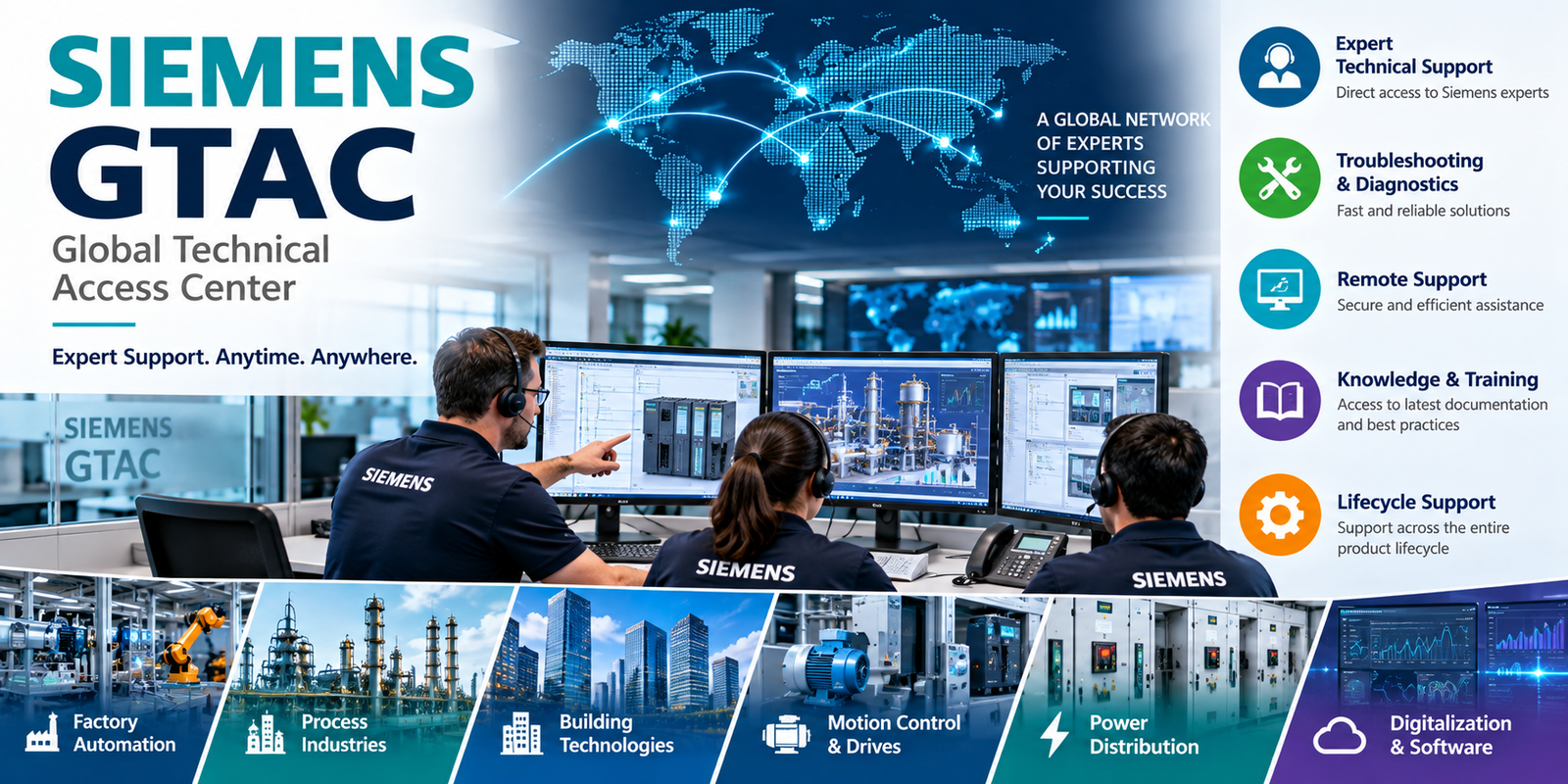
When Siemens software stops working as expected, finding the right support channel shouldn’t become another troubleshooting task. People search for Siemens GTAC because they need technical help, product documentation, updates, or a way to track an unresolved issue.
The key distinction is product ownership: GTAC is associated with Siemens Digital Industries Software, while Siemens uses separate support routes for industrial products and services. Choosing the correct portal keeps your request connected to the relevant product team.
Start with the product you’re supporting, then confirm which account and support resources apply.
Table of Contents
What Siemens GTAC Is, and What It Supports
GTAC stands for Global Technical Access Center. It refers to technical support associated with Siemens Digital Industries Software, rather than every Siemens product or service.
Siemens retains the name in its GTAC documentation, which directs users toward Support Center resources. This distinction matters when you’re following an older troubleshooting guide or searching for a support contact.
How GTAC Support Helps Software Customers
Software support connects customers with product-focused technical assistance and resources for diagnosing problems. Those resources include knowledge articles, documentation, downloads, updates, support cases, and case history.
Siemens software product areas include Solid Edge, Polarion, and Simcenter. These products support different engineering workflows, so the exact product name matters when you search or submit a request.
In practice, a useful support interaction combines the software release, operating environment, observed behavior, and relevant evidence. That gives the support team a clearer starting point than a general report that the application isn’t working.
The available resources and case options depend on your product and access. Check what your account provides before planning around a particular support channel.
Why Older GTAC Instructions May Not Match Today’s Process
An older Siemens GTAC guide may describe a portal layout, registration sequence, or contact route that has changed. Treat it as historical guidance until you confirm the current process.
WebKey appears in Siemens support materials as an authentication route. However, that doesn’t make every historical sign-in instruction applicable to your present account.
Use Siemens’ active support pages to verify registration, access, and case submission. The product information may remain useful even when the surrounding navigation instructions no longer match.
How to Choose the Right Siemens Support Portal
The practical decision is product-based: use Support Center for Siemens Digital Industries Software, and SiePortal for Siemens industrial products, services, and solutions.
Use Support Center for Siemens Software
Siemens Support Center is the starting point for Digital Industries Software customers seeking technical support resources.
After signing in, customers can search knowledge articles, access product documents, find downloads and updates, and open or review support cases. Case history helps you follow earlier exchanges without reconstructing the issue through separate messages.
Select the relevant product before searching. Solid Edge, Polarion, and Simcenter have different technical contexts, documentation, and troubleshooting requirements.
Access can depend on your account and support entitlement. Confirm the available functions in the portal rather than assuming that every registered user receives identical access.
Use SiePortal for Industrial Products and Services
SiePortal is the support route for Siemens industrial products, services, and solutions, including technical requests. This route is distinct from Digital Industries Software support.
That distinction also applies to engineering software associated with industrial automation. A Siemens software name alone doesn’t identify the correct support organization. Check the product family and its official support route.
For teams maintaining TIA Portal installations, this TIA Portal update installation guide provides related background on update preparation. Use Siemens’ current industrial support resources to confirm the package and documentation for your installed release.
The word “software” doesn’t automatically mean Support Center. Route the request by product family, especially when industrial engineering tools are involved.
Confirm Account Access Before Troubleshooting the Product
A sign-in problem and a product problem need different evidence. Establish which one you’re dealing with before opening a technical request.
If you can sign in but can’t see an expected download or case option, check the account’s product access and support entitlement. A successful login doesn’t confirm access to every resource.
For Digital Industries Software customers, the Siemens DISW Customer Center brings together license management, software downloads, support access, and documentation. It provides another starting point for understanding your customer resources.
Keep the account associated with your organization clear. If your company manages support access centrally, involve the person responsible for that relationship before creating additional accounts.
Duplicate accounts can make internal ownership harder to track. They also leave colleagues uncertain about which identity contains the relevant support history.
When reporting an access issue, identify the resource you were trying to reach and describe what happened. Include the visible error message when appropriate, but don’t share passwords or authentication codes.
Record whether the failure occurs during sign-in, after product selection, or when opening a particular resource. These are separate observations. They help distinguish an account-access question from an application issue.
Once access is confirmed, keep the technical problem separate. Your software version, reproduction steps, and logs belong in the product case, where they can be reviewed together. This separation keeps account administration and engineering troubleshooting focused on their own tasks.
Search Product Resources Before Opening a Case
An existing knowledge article or documented limitation may answer your question without a new support exchange. Search with the exact product name, release, and error message rather than broad descriptions.
Siemens’ software support services include knowledgebase articles, product downloads, videos, and self-paced learning materials through Support Center.
Use those resources to establish what is already documented. The goal is to narrow the problem, not to spend hours trying unrelated fixes.
A practical search sequence is:
- Select the relevant product and check that the resource applies to your installed release.
- Search the exact error message or the operation that fails.
- Review the documented conditions and compare them with your environment.
- Record any relevant article and the result of an approved troubleshooting step.
Version matching matters. Instructions written for another release may describe different commands, prerequisites, or supported configurations.
Keep a brief record of what you’ve checked. If you later open a case, that record helps the support team understand the work already completed.
Avoid treating every available update as a troubleshooting answer. Review the release information and compatibility requirements before changing an installation.
In a shared engineering environment, an update can affect colleagues, project compatibility, and established workflows. Follow your organization’s approval and backup procedures before making that change.
If the documentation doesn’t explain the observed behavior, submit the case with the search results attached or referenced. That gives the technical discussion a defined starting point.
How to Get a Useful Answer from Siemens Support
A clear case helps the support team understand the problem and choose the next diagnostic step. It doesn’t guarantee a response time or resolution.
Prepare Clear Details Before Opening a Case
Provide enough information to describe the failure without burying it in unrelated history. A practical case should include:
- Identify the product, version, and relevant update level.
- Describe the operating system and other system details that affect the issue.
- Explain the steps that reproduce the behavior, including the expected and actual results.
- Include exact error messages and relevant screenshots or logs.
- State the impact on work and any temporary workaround you’ve verified.
Keep the sequence clear. Explain what you opened, what operation you performed, and where the result differed from expectations.
State whether the issue is repeatable or intermittent. If you can’t reproduce it consistently, describe the conditions you’ve observed without presenting an assumption as a confirmed cause.
Review attachments before uploading them. Don’t include sensitive information unless Siemens requests it through a secure channel.
Track the Case and Verify Contact Details
Use the relevant portal to check case status and history. Keep follow-up evidence connected to the existing case so the technical record remains complete.
For phone or email assistance, consult Siemens’ current country-specific support information. Don’t rely on telephone numbers, email addresses, or operating hours copied from older Siemens GTAC guides.
If business impact changes, update the case with the new facts. Explain which activity is affected and whether a workaround remains available.
Clear updates support the technical discussion. Repeated messages without new information add little diagnostic value.
Validate the Resolution Before Returning to Normal Work
A support recommendation is a step to evaluate in your environment. Record the proposed change, any prerequisites, and the result before declaring the issue resolved.
Check that the recommendation applies to your product version. If an instruction is unclear, ask for clarification within the case rather than filling in missing steps yourself.
For Designcenter X Solid Edge users, Siemens provides product-specific support resources covering documentation, knowledge articles, and troubleshooting assistance. Matching the resource to the product keeps validation focused.
Follow your organization’s change-control process when the recommendation affects a shared installation or production environment. Confirm backups and approvals before changing configurations, applying updates, or replacing files.
Then repeat the operation that originally failed. Compare the result with the expected behavior recorded in the case.
Check the surrounding workflow too. A successful launch doesn’t prove that the affected engineering task now works correctly.
If the issue remains, report what changed and what stayed the same. Include new errors or logs, and identify the recommendation you tested.
Once the result is verified, retain the case reference and relevant version information in your internal maintenance record. That gives colleagues usable history if the same behavior returns.
Keep ownership clear until validation is complete. The person coordinating the case should know who tested the recommendation, which environment was used, and whether normal work can resume. This closes the gap between receiving advice and confirming an operational result.
Conclusion: Choose the Product’s Support Route
Siemens GTAC refers to support associated with Siemens Digital Industries Software. Support Center is the current starting point for those software customers, while SiePortal handles industrial-product support.
The strongest first step is correct routing, followed by confirmed account access and a clear description of the issue. Use current Siemens contact information rather than details preserved in older guides.
Before submitting your request, identify the product, release, and reproducible behavior. A well-documented case gives support a useful starting point and gives your team a record it can trust.