Introduction
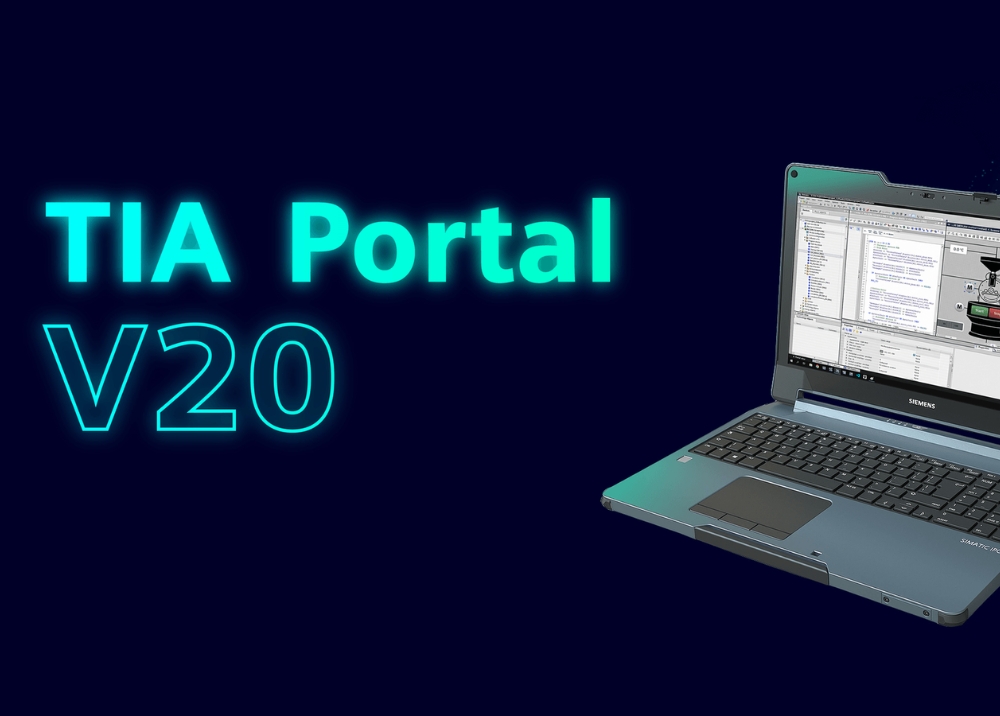
TIA Portal V20 Update 4 is the latest service pack from Siemens, designed to enhance performance, security, and compatibility in industrial automation projects. Whether you are programming PLCs, designing HMIs, or configuring drives, this update ensures smoother workflows and improved stability. In this guide, we’ll explore the key features, installation process, and benefits of upgrading to TIA Portal V20 Update 4.
What is TIA Portal?
Before diving into the specifics of TIA Portal V20 Update 4, it’s important to understand the TIA Portal itself.
TIA Portal (Totally Integrated Automation Portal) is Siemens’ all-in-one engineering software platform. It integrates:
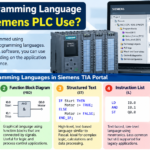
- PLC Programming – For controllers like SIMATIC S7-1200 and S7-1500.
- HMI Design (WinCC) – For operator panels and SCADA systems.
- Drives Integration – Such as SINAMICS drives.
- Industrial Communication – PROFINET, PROFIBUS, OPC UA, Modbus, and more.
- Engineering Tools – Diagnostics, project simulation, and cross-reference features.
By combining all engineering tasks into a single framework, TIA Portal reduces development time, minimizes errors, and improves collaboration.
Why Upgrade to TIA Portal V20 Update 4?
Software updates are not just about new features—they are also about reliability, security, and compatibility. Here’s why upgrading to TIA Portal V20 Update 4 is highly recommended:
- Improved Stability – Fewer software crashes when handling large projects.
- New Device Support – Compatible with the latest Siemens hardware.
- Performance Optimization – Faster project load, save, and compile times.
- Cybersecurity Enhancements – Stronger protection against unauthorized access.
- Resolved Issues – Fixes bugs from previous versions (Update 1, 2, and 3).
💡 Tip: Siemens regularly releases updates like Update 4 to ensure users can rely on the software for critical industrial projects.
Features of TIA Portal V20 Update 4
The heart of this update lies in its features and enhancements. Let’s break them down:
1. Extended Device Support
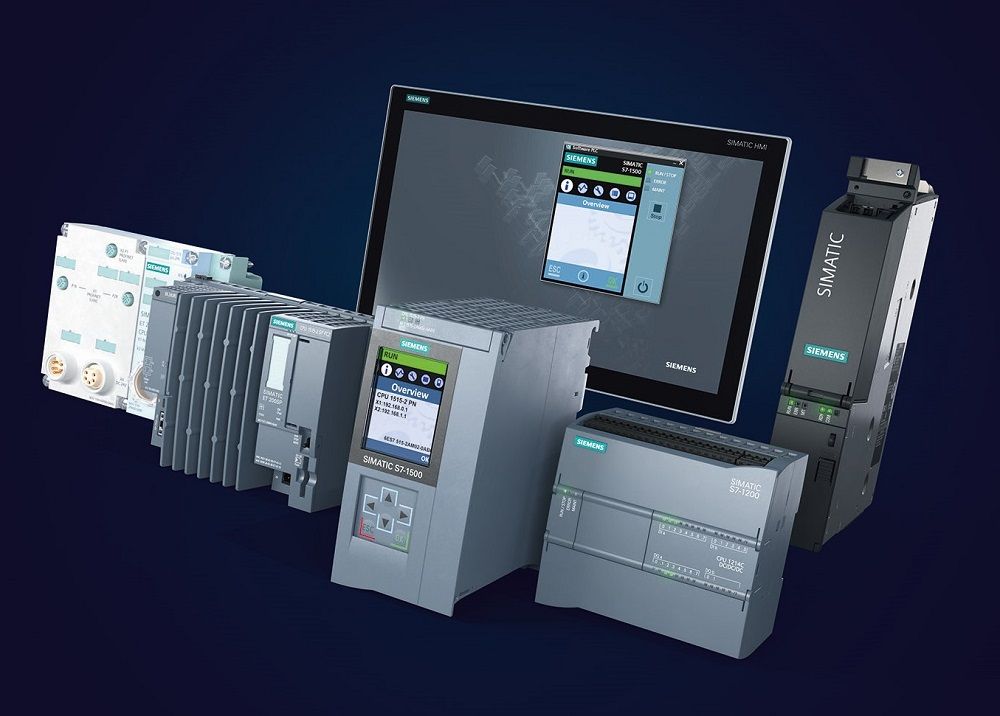
- Added support for the latest SIMATIC S7-1200 and S7-1500 CPUs.
- Enhanced compatibility with SINAMICS G and S series drives.
- Wider range of WinCC HMI panels in the hardware catalog.
2. Performance Improvements
- Faster project compilation and download to PLCs.
- Reduced memory consumption during engineering tasks.
- Optimized PLC-HMI data synchronization.
3. Security Enhancements
- Better certificate management for secure communication.
- Strengthened protection against cyber threats in OT environments.
- Compliance with Siemens’ Defense-in-Depth security strategy.
4. Bug Fixes
- Resolved HMI tag update issues reported in Update 3.
- Fixed synchronization errors in distributed systems.
- Corrected drive configuration glitches.
5. User Interface and Usability
- Improved navigation in cross-reference tools.
- More intuitive project comparison functions.
- Streamlined wizards for device configuration.
System Requirements for TIA Portal V20 Update 4
To run TIA Portal V20 Update 4, your system must meet the following requirements:
- Supported Operating Systems:
- Windows 10 Pro (64-bit)
- Windows 11 Pro (64-bit)
- Windows Server 2019 / 2022
- Processor: Intel Core i5/i7 (or AMD equivalent)
- RAM: Minimum 8 GB (16 GB recommended)
- Disk Space: At least 40 GB free
- Graphics: DirectX 11 compatible GPU
- Other Requirements:
- Administrator rights
- Updated Microsoft .NET Framework
- Internet connection for updates
How to Download TIA Portal V20 Update 4
Follow these steps to safely download the update:
- Go to Siemens Industry Online Support (SIOS) portal.
- Search for TIA Portal V20 Update 4.
- Select the correct package (Step 7 Professional, WinCC, etc.).
- Log in with your Siemens account.
- Download all compressed zip files (often split into parts).
- Extract the files using 7-Zip or WinRAR.
Installation Guide for TIA Portal V20 Update 4
Installing the update correctly ensures smooth performance.
Step 1: Backup Your Projects
Always archive your existing projects before updating.
Step 2: Close Running Applications
Shut down Siemens tools, antivirus, and unnecessary programs.
Step 3: Run Setup
Open the extracted folder → right-click Start.exe → select Run as Administrator.
Step 4: Choose Installation Type
- Update Installation if TIA Portal V20 is already installed.
- Full Installation for new setups.
Step 5: Accept License Agreement
Read and accept Siemens’ End User License Agreement (EULA).
Step 6: Installation Progress
- The process takes 30–60 minutes, depending on PC speed.
Step 7: Restart System
A restart is necessary to complete installation.
Step 8: Verify Version
Open TIA Portal → go to Help > Info → Confirm version shows V20 Update 4.
Benefits of TIA Portal V20 Update 4
Upgrading brings both technical and practical advantages:
- Stable Operation – Ideal for large-scale automation projects.
- Future Proofing – Compatible with Siemens’ latest hardware.
- Security – Protects your OT networks from cyber threats.
- Efficiency – Reduces engineering time with faster workflows.
- Team Collaboration – Better project sharing and library management.
Common Issues and Fixes in TIA Portal V20 Update 4
Even with improvements, users may encounter issues.
Issue 1: “Corrupt Installation Files”
- Solution: Re-download files and use 7-Zip for extraction.
Issue 2: “Unsupported Operating System”
- Solution: Ensure you are using Windows 10/11 or Server 2019/2022.
Issue 3: “License Missing”
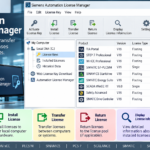
- Solution: Update Automation License Manager to the latest version.
Issue 4: “Slow Performance”
- Solution: Upgrade to SSD, increase RAM, or optimize Windows startup programs.
TIA Portal V20 Update 4 vs Previous Updates
| Feature / Fix | Update 2 | Update 3 | Update 4 |
|---|---|---|---|
| Device Catalog | Limited | Expanded | Full Support |
| Performance Improvements | Moderate | Good | Excellent |
| Security Fixes | Basic | Better | Strongest |
| Windows 11 Support | ❌ | Partial | ✅ Fully |
| Bug Fixes | Few | More | Extensive |
Clearly, TIA Portal V20 Update 4 is the most stable and optimized release in the V20 series.
Best Practices for Using TIA Portal V20 Update 4
To get the most out of your update:
- Keep your hardware catalog updated.
- Use auto-backup features for projects.
- Organize your project libraries for efficiency.
- Regularly check Siemens support portal for hotfixes.
- Run TIA Portal on SSD for best performance.