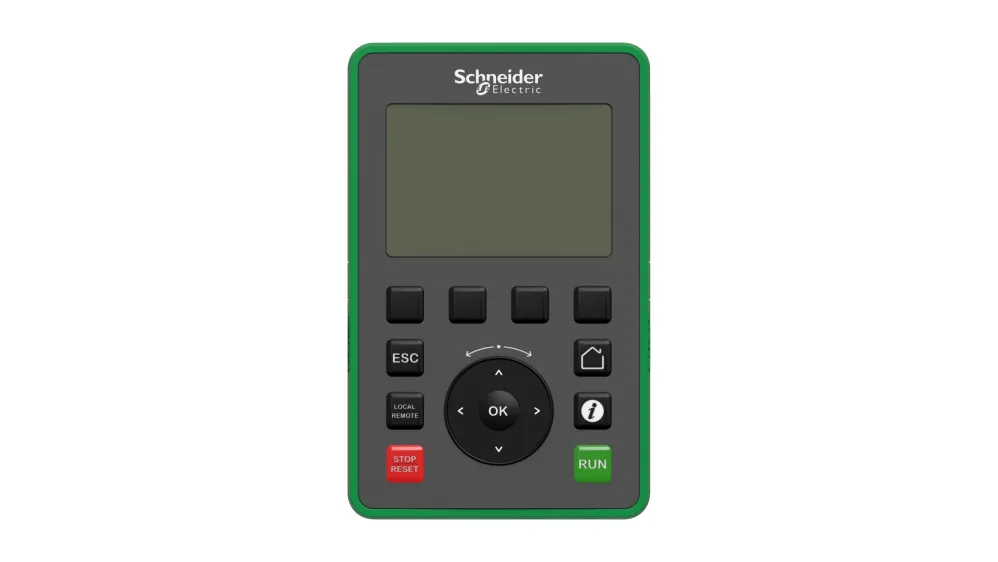
An unresponsive HMI touch screen almost always comes down to one of five root causes — power supply issues, touch calibration drift, loose ribbon cables, electrical noise (EMI/ESD), or a software/firmware fault. Work through the steps below in order and you’ll fix 90% of cases without ordering a single part.
Nothing stops a production line faster than an HMI that ignores every tap. One moment the panel is fine, the next your operator is jabbing the screen and getting nothing. Before you call for a replacement unit, walk through this systematic checklist — it takes under 10 minutes and resolves the vast majority of field failures.
Table of Contents
What causes an HMI touch screen to stop responding?
Power issue Unstable or incorrect supply voltage — the #1 hidden cause
Calibration drift Touch coordinates shift after thermal cycling or firmware update
Loose ribbon cable Vibration loosens internal flat flex connectors over time
EMI / ESD Nearby VFDs or poor grounding inject noise into the touch controller
Firmware fault Corrupt or incompatible update freezes the touch stack
Digitizer failure The touch sensor itself has failed — requires hardware replacement
Step-by-step fix (do these in order)
- Check the power supply first~1 min
Confirm the HMI is receiving the correct and stable supply voltage — use a multimeter at the terminal block. A surprising number of “touch not responding” faults are unstable power stories: voltage sag from a shared rail, a blown fuse, or a degraded 24 V DC power supply. If you have a field power adapter, swap in a known-good unit.
Check for voltage ripple, not just average voltage. A supply reading 24 V DC can still have enough ripple to crash a touch controller.
2.Restart the HMI~1 min
Like any embedded computer, HMIs can accumulate memory errors or stuck processes. A clean power cycle — not just a soft reset — often clears ghost touch events or a frozen touch driver. Power completely off, wait 30 seconds, then power back on. Observe whether the issue persists after boot.
If the screen displays correctly but ignores touches, the OS and application are fine — the fault is in the touch path specifically. This narrows your search to Steps 3–5.
3. Plug in a USB mouse to isolate the touch layer~1 min
If the HMI has a USB port, connect a known-good mouse and keyboard. If the mouse cursor moves and buttons respond normally, your OS and application are healthy — the fault is specifically in the touch digitizer or its calibration data. If even the mouse doesn’t work, the fault is deeper (OS, CPU, or power).
4. Recalibrate the touch screen~2 min
Most HMIs include a built-in calibration utility. Access it via the device settings menu (the exact path varies by brand — Siemens, Weintek, Delta, and Schneider all have this under display or system settings). Follow the on-screen prompts, touching the predefined points precisely. Calibration issues are especially common after thermal cycling, physical impacts, or operating behind a door or arm that flexes the panel overlay.
If the panel is mounted on a moving door or swinging arm, check whether the touch issue disappears when the door is pressed flat. Panel flex can create a “stuck touch” condition that mimics digitizer failure.
5. Inspect the ribbon cable and internal connections~3 min
With power off and LOTO applied, open the HMI enclosure and visually inspect the flat flex cable (FFC) connecting the touch panel to the controller board. Vibration and thermal expansion cause connectors to loosen gradually — this is one of the most common hardware causes on panels that have been in service for 2+ years. Re-seat the connector firmly. Also check for any signs of physical damage to the cable itself.
Always lock out / tag out before opening any panel. Confirm all wires are securely reconnected before restoring power.
6. Check for EMI / grounding issues~2 min
Nearby variable frequency drives (VFDs), poorly shielded signal wiring, or improper PE (protective earth) grounding are a common but overlooked cause. Electrical noise couples into the capacitive touch sensor and causes phantom inputs or complete unresponsiveness. Verify the HMI chassis is properly grounded to the panel PE bus. Check that signal cables are not routed parallel to power cables. If a VFD was recently installed near the HMI, suspect EMI first.
A quick test: temporarily power the HMI from a separate circuit away from the panel. If touch suddenly works, EMI from the shared power rail or nearby VFD is the culprit.
7. Update or reinstall firmware~5 min
If the screen stopped responding after a firmware or software update, corrupted drivers or an incompatible image may be the cause. Download the latest verified firmware from the manufacturer’s website (Schneider Electric, Siemens, Weintek, etc.) and reflash. If the issue appeared after an update, also check whether reverting to the previous stable version resolves it. As a last resort, perform a factory reset — but back up your project file first.
Only flash firmware that is verified and validated by the OEM for your specific HMI model and hardware revision. A wrong firmware version can permanently brick the unit.
Repair or replace?
Repair / replace digitizer
- Touch works in some areas but not others
- Ghost touches occur without contact
- Physical crack visible on screen
- Touch fails but display is perfect
Replace full HMI unit
- Entire unit unresponsive (touch + display)
- Screen completely black
- Internal failure beyond the touch panel
- Unit is 7+ years old and repeatedly failing
Quick reference summary
| Step | Check | Time | Tools needed |
|---|---|---|---|
| 1 | Power supply voltage | 1 min | Multimeter |
| 2 | Hard restart | 1 min | None |
| 3 | USB mouse test | 1 min | USB mouse |
| 4 | Touch calibration | 2 min | HMI menu |
| 5 | Ribbon cable re-seat | 3 min | Screwdriver, LOTO |
| 6 | Grounding / EMI check | 2 min | Visual inspection |
| 7 | Firmware update / reflash | 5 min | USB drive, OEM software |
Frequently asked questions
Why does my HMI show ghost touches (inputs with no contact)?
Ghost touches are typically caused by EMI from nearby VFDs or poor grounding, a damaged capacitive digitizer, or outdated firmware with a touch driver bug. Start by checking grounding, then update firmware, then inspect the digitizer.
My HMI touch registers in the wrong place — what’s wrong?
This is calibration drift. Run the built-in touch calibration utility from the system settings menu. This is especially common after the HMI has been in service through many thermal cycles or after a firmware update.
How long does an HMI touch screen typically last?
In typical industrial environments, most HMI touch panels are rated for 50,000+ hours of operation. Physical wear, ESD events, and harsh environmental conditions (high vibration, moisture, chemicals) are the primary factors that reduce service life.
Can I use a stylus or gloves with an HMI touch screen?
It depends on the touch technology. Resistive panels work with any stylus or gloved finger. Capacitive panels require a conductive stylus or capacitive-compatible gloves — standard rubber gloves will not work. Never use a screwdriver tip on any HMI screen.
Found this helpful? Subscribe to the Products Explorer channel for more industrial automation guides — covering Schneider Electric, Modbus, SCADA, BACnet, VFDs, and practical panel engineering tips every week.