If you’re searching for a schneider pme 2022 download, you’re usually in one of two situations: a new deployment is about to start, or an older power monitoring server needs a rebuild. Either way, guessing is risky. PME (EcoStruxure Power Monitoring Expert) sits close to critical electrical data, so the installer source, version, and prerequisites matter.
PME 2022 is used to monitor energy use, power quality, and electrical system health in buildings and plants. The installer is a large ISO file, downloads often require a Schneider Electric login, and the platform is designed for trained engineers and integrators. Below is a safe, step-by-step path to find the official download, confirm it’s the right media, and prep your server before you click Setup.
Before you download: make sure PME 2022 is the right fit for your site
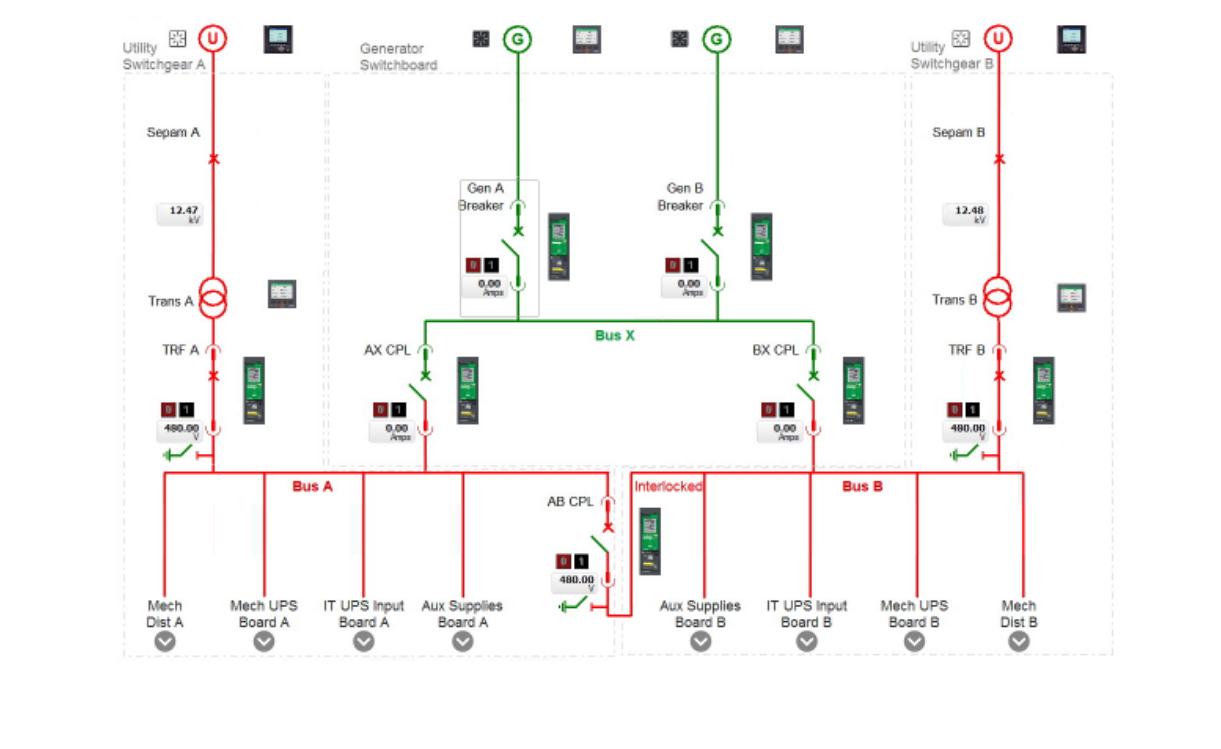
PME collects meter and device data (kW, kWh, demand, voltage, current), then turns it into alarms, trends, power quality events, and reports. In practical terms, it’s the difference between “we think something happened” and “here’s the waveform, the timestamp, and the feeder.”
Most deployments involve facility teams, energy managers, and system integrators. The software isn’t hard because of one complicated screen. It’s hard because it touches networking, Windows services, SQL Server, device communications, and licensing. If you want a refresher on what PME covers at a feature level, this overview of Schneider Electric Power Monitoring Expert (PME) is a good primer before you commit to a build.
Common reasons people choose PME 2022
Teams pick PME 2022 when they need answers that basic metering screens don’t give.
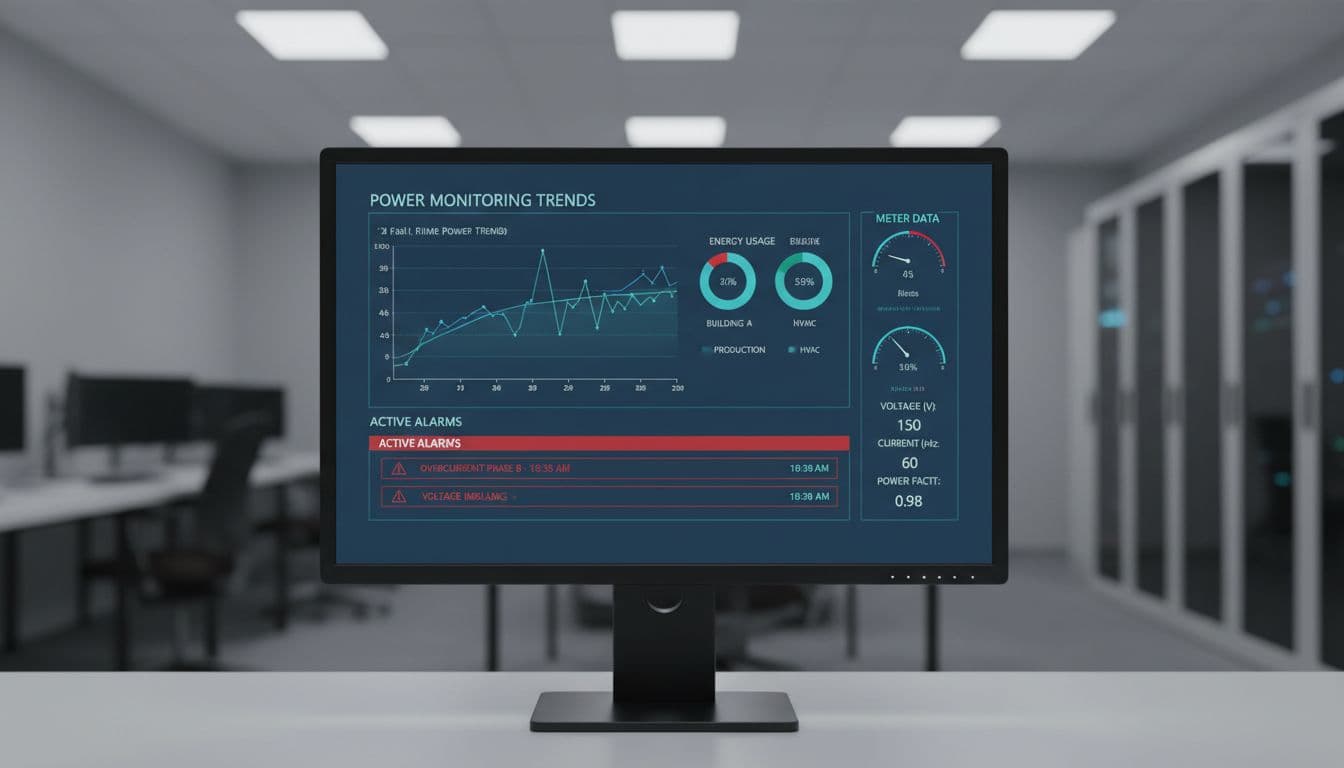
Common use cases stay very concrete:
- Track energy by area or tenant so chargeback reports don’t become manual spreadsheet work.
- Spot demand peaks that trigger demand charges, even when the spike lasts minutes.
- Catch power quality problems like sags, swells, harmonics, or transients that trip drives and UPS gear.
- Monitor breakers and meters for load creep, overheating risk signals, or repeated alarms.
- Produce repeatable reports for audits, energy reviews, or internal billing.
PME 2022 can also act like an early warning system. A small drift in neutral current or harmonic distortion can show up days before a nuisance trip. That extra time is often the real payoff.
Quick checks that prevent wasted time
A download is easy. A usable installation takes planning. Run these checks first so you don’t end up with an ISO you can’t deploy:
- Confirm your meters, gateways, and protection devices are supported and reachable (protocol, addressing, ports).
- Confirm you have a Windows Server host (physical or VM) that meets sizing targets.
- Decide your database plan early (SQL Server instance, storage, backups, retention).
- Confirm you can sign in with a Schneider account (mySchneider, EcoXpert, or your org’s access).
- Confirm your license model and device count match your meter population, plus growth.
PME installs fail more often from missing prerequisites (SQL, Windows roles, permissions) than from the installer itself. Prep work saves hours later.
How to get the official Schneider PME 2022 download (and avoid unsafe files)
For PME 2022, treat the installer like firmware: only download from Schneider Electric domains, and avoid “free download” mirrors. Third-party sites can bundle adware, altered installers, or outdated media that breaks upgrades.
In March 2026, Schneider still hosts PME 2022 media, but access often requires a login, and support status may differ from newer releases. If you work in regulated environments, capture a copy of the installer source link and any release notes as part of your change record.
Official download link for the PME 2022 ISO
Schneider distributes PME 2022 as an ISO (install media). The official download page may redirect by region, and you may need to sign in.
Use the ISO document reference (PME 11.0, commonly labeled PME 2022) from Schneider Electric here: PME 2022 ISO download page.
Download PME2022If your portal blocks access, try these quick fixes first:
- Sign in, then refresh the download page.
- Switch region if the US portal errors, then search the same document name on another Schneider portal.
- Search Schneider’s download center for the exact document reference, and keep the original filename once downloaded.
For some users, the same ISO appears on other regional Schneider pages, for example PME_2022.ISO document listing. The key is that the host domain remains se.com.
How to confirm the file you got is really PME 2022
You don’t need deep forensic checks to avoid the most common mistakes. Validate these items before you mount the ISO:
- Domain check: the source should be a Schneider Electric domain (se.com).
- Document name: look for the ISO reference that matches PME 2022 (often shown as PME_11.0.iso).
- File type: the download should be an ISO, not a ZIP of “cracks” or a random EXE.
- Filename integrity: keep the original name so your team can match it to documentation later.
Also, don’t run installers from email attachments or file shares with unknown origin. If someone “sent you the ISO,” ask for the Schneider download page link instead.
If you’re part of an integrator channel, Schneider also lists PME 2022 within the EcoXpert software area, which can help you confirm you’re looking at the right product family: Power Monitoring Expert 2022 in EcoXpert software center.
What you need ready before installing PME 2022
A PME server is like a control panel, the wiring behind it matters more than the faceplate. Before installation, lock down your server basics: CPU, RAM, storage IOPS, and backups. Next, make sure Windows patching, time sync, and DNS are stable. After that, plan the network paths to meters and gateways, including firewall rules and any segmented OT networks.
For official sizing and deployment details, use Schneider’s documentation, not blog snippets. The guide spells out supported OS versions, SQL expectations, and design patterns (single server, distributed roles, scale-out).
System requirements and planning guide (official document)
Start with Schneider’s official guide: Power Monitoring Expert 2022 System Guide (7EN02-0471).
This document is for sizing, deployment planning, and configuration guidance. It’s not a beginner tutorial, and Schneider states it’s intended for qualified personnel. In other words, treat it like an engineering manual. Follow it closely, or bring in an experienced integrator if your site is mission-critical.
Licensing, SQL Server, and other “hidden” prerequisites
Licensing and database choices create most last-minute surprises. PME features depend on what you’ve licensed (device packs and optional modules), and your SQL Server edition and licensing can add cost depending on how you host the system.
A simple pre-install checklist keeps you honest:
- Number of devices today, plus expected growth
- Reporting needs (billing, chargeback, compliance)
- Power quality depth needed (events, waveforms, retention)
- SQL Server plan (instance, storage, backup jobs, maintenance windows)
If your long-term goal is portfolio energy reporting, it can help to map PME outputs into broader programs. This broader context on Schneider Electric energy management can guide what data you should standardize early (naming, hierarchies, and time alignment).
Install and upgrade basics for PME 2022, plus common problems and fixes
Once prerequisites are in place, installation is usually straightforward. Still, it’s easy to get stuck on SQL connectivity, permissions, or missing Windows components. Plan your install like you’d plan a relay replacement: controlled steps, verified checkpoints, and a rollback plan.
A simple install flow you can follow (high level)
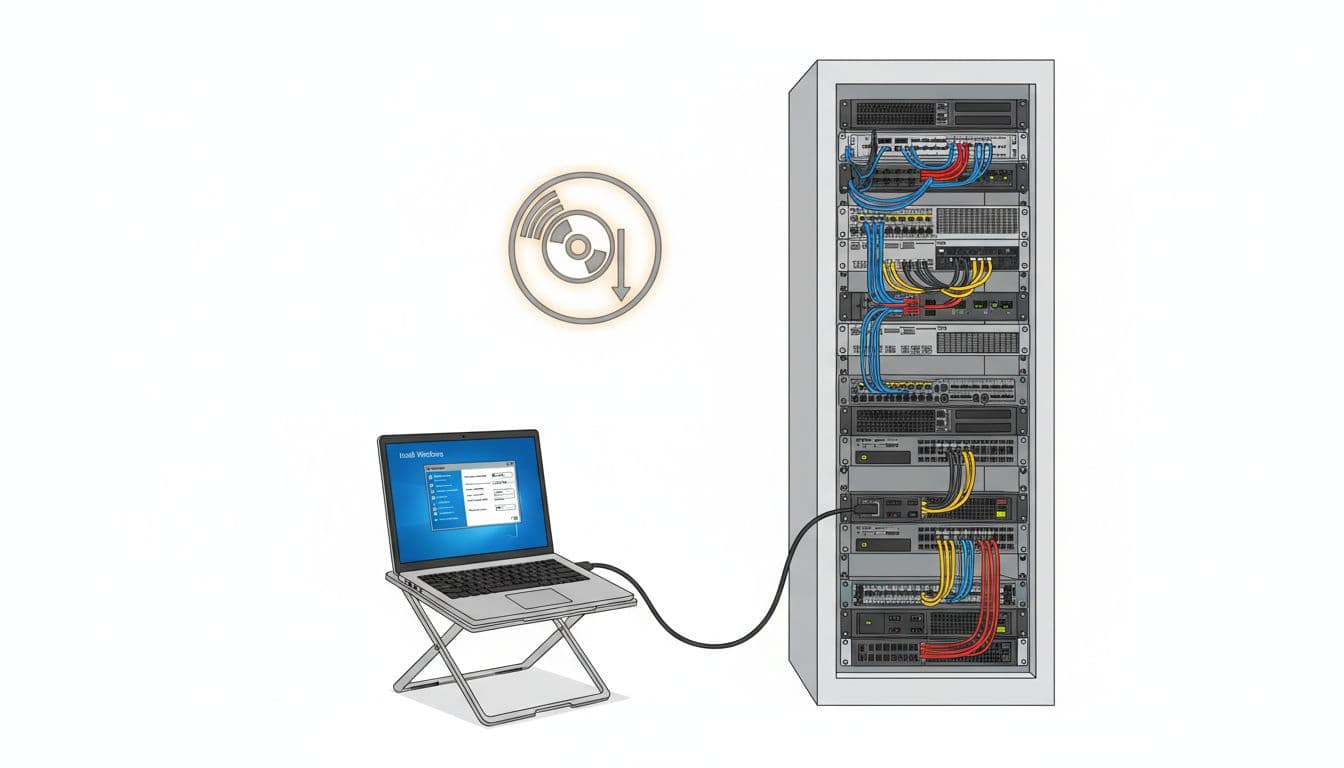
Use this high-level flow, then follow the System Guide for exact options:
- Back up the server (or snapshot the VM), then confirm Windows updates are complete.
- Mount the ISO, then launch the installer from the mounted media.
- Choose the deployment type and components based on your architecture plan.
- Point PME to your SQL Server instance and confirm the database path and permissions.
- Complete the install, then verify key services run and stay running.
- Log in, add a test device (or use demo data), and confirm you see live values and logging.
For upgrades, schedule downtime, back up databases and config, and verify the target version path is supported. When in doubt, follow Schneider’s documented upgrade approach, not assumptions from older releases.
Top download and setup issues, and what to try first
Most first-day problems have boring causes. That’s good news because they’re fixable.
- Download blocked: sign in with the right account, then retry the Schneider download page.
- Wrong region portal: switch region or search by the document reference.
- Slow ISO download: use a stable wired link, and try off-hours.
- Installer fails early: re-check Windows roles and prerequisites in the System Guide.
- SQL connection errors: confirm instance name, firewall rules, credentials, and SQL services.
- Licensing not applied: verify license files and confirm device counts match your project.
If you install successfully but real-time values don’t show up, focus on services and communications first. This troubleshooting write-up on fixing the PME real-time data proxy error is a practical starting point for one common symptom.
For keeping PME 2022 current after the base install, Schneider also posts guidance on cumulative updates. Their FAQ is a good pointer to the latest CU location: PME 2022 cumulative update FAQ.
Conclusion
A safe schneider pme 2022 download process is simple: confirm PME 2022 fits your monitoring needs, download the ISO only from se.com, then validate the filename and source before install. Next, read the System Guide and plan SQL Server and licensing early, because those choices drive most delays. Finally, test the build on a non-production server when you can, then move to production with a controlled change plan and a trained Schneider partner if the site is critical.